
Portal Page – Announcements, Messages, Workbasket
Portal Page
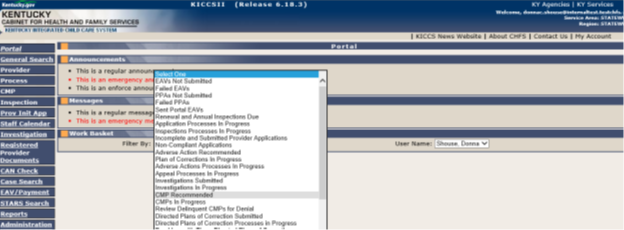
Okay, now let’s move your focus from the navigational menu on the left to the section to the right of it, in the middle of the screen. This section has three important communication headings. These headings are available to all users, however, the content displayed will vary depending on user type and access.
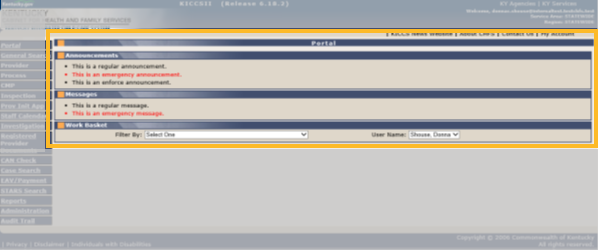
Follow along!

If you are able to, open the KICCS Portal Page and check out these links as you move through the course. You can also follow along in your user guide starting on page 34.
Click on each box below to learn more information about each menu item.
Announcements Section
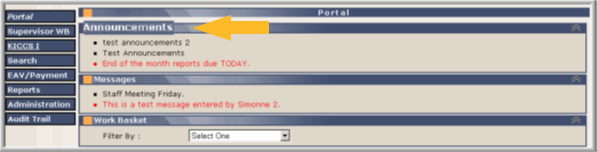
Announcements for all users can be found here. These are messages and information posted by DCC. Announcements are classified by importance:
- Regular – non-emergency messages
- Enforce – not currently used (will be in bold)
- Emergency – requires immediate action (will be in red)
Announcements are only available for an amount of time specified when it was created. Any expired announcements are automatically removed.
Remember the Announcement section under the Administration Section of the Navigational Menu? This is where these announcements are originally created.
Messages Section
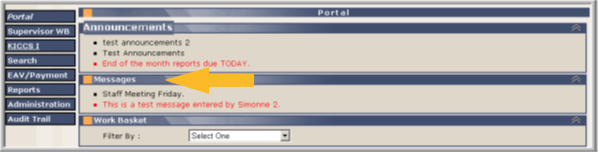
Messages for all users can be found here. Messages are posted for specific user groups, not all groups will see all messages. Messages are classified by importance:
- Regular – non-emergency messages
- Enforce – not currently used (will be in bold)
- Emergency – requires immediate action (will be in red)
Messages are only available for an amount of time specified when it was created. Any expired messages are automatically removed.
Remember the Announcement section under the Administration Section of the Navigational Menu? This is where these messages are originally created.
Workbasket
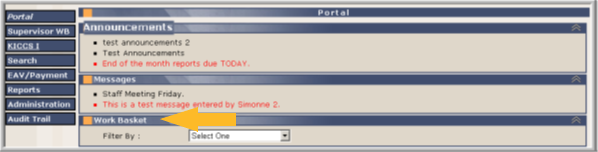
Not sure if you have a task to do? The Work Basket can provide you with information about your task assignments. This is the work management tool, and this section will alert the user if they have a needed action and can assist with child care payments, ongoing processes, provider status changes, and All STARS.
Your assignments will determine what work baskets are available.
Use the drop-down menu to select specific workbaskets.
In general, the search results will be by most current appearing at the top; however, double-clicking a column will reverse the order.
Want to know more?
How to navigate, filter, and use workbaskets is discussed in the KICCS User Guide appropriate for each process or page of the workbasket.
Now that you have had the chance to learn the basics about Portal Page let’s check your understanding of what can be found on the Portal Page and how to use it.
A minimum score of 80% is required to progress through the course.